









Tutorial Center
Platform User Guides Salasah Go!
Interactive visual guides and video tutorials explaining how to use the Learning Management System. Accessible to everyone without login.
Contents
For Teachers / Trainers
- How to Log In
- Creating Training Courses
- Managing Virtual Classrooms
- Starting the Training Process
- Creating Tests and Assessments
- Creating Assignments and Tasks
- Responding to Trainee Inquiries
- Tracking Progress and Reports
For Learners / Trainees
- How to Log In
- Selecting Training Courses
- Starting the Training Process
- Managing Virtual Classrooms
- Interacting with Content & Communication
- Completing Tasks and Assignments
- Completing Tests
- Tracking Program Progress
- Booking a Placement Test
For Teachers / Trainers
How to Log In
Visual guide explaining the steps to log into the Learning Management System and access the teacher dashboard.
Duration: 5 min
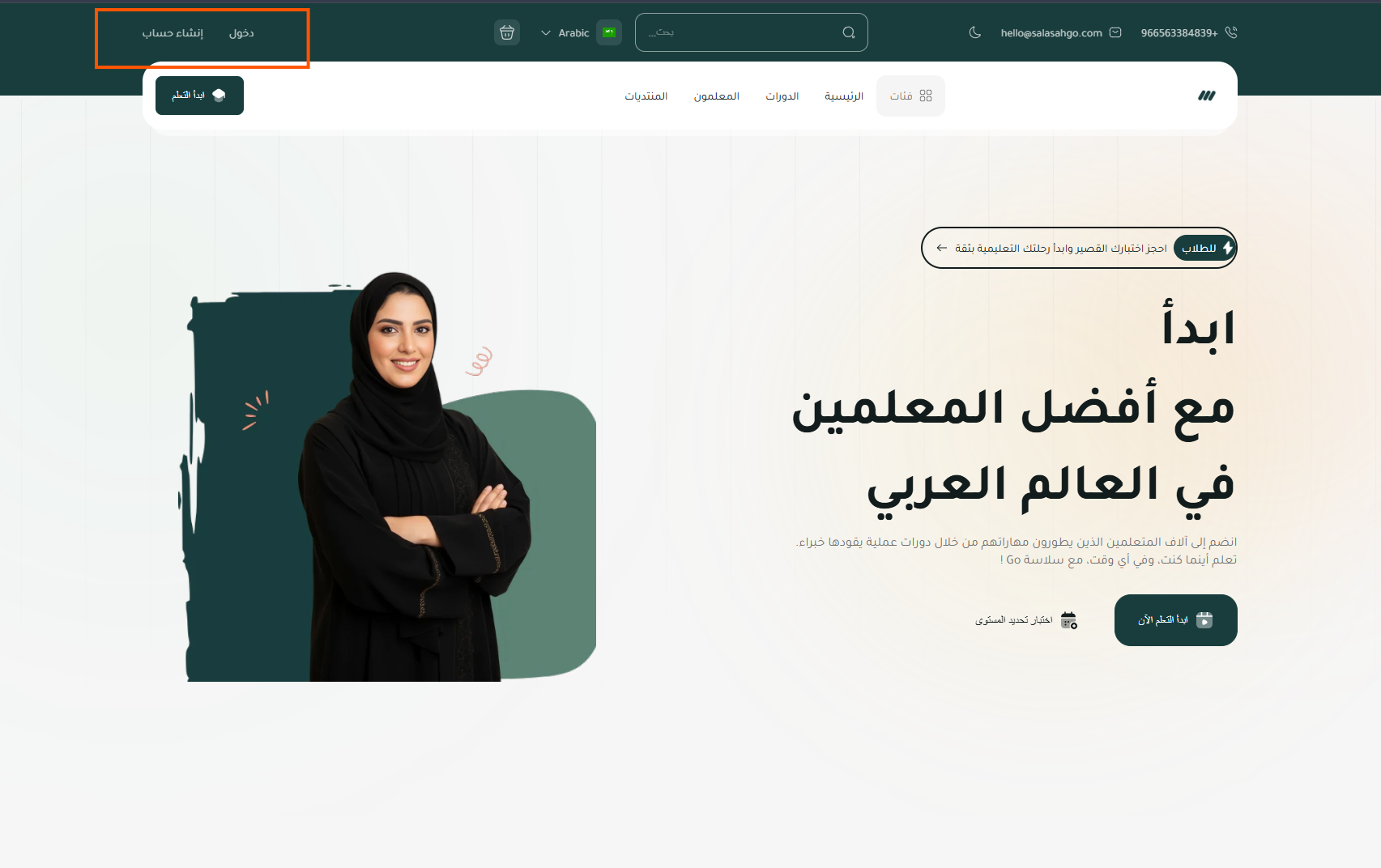
Step 1 Access the login page
Open your web browser and navigate to the official Salasah Go! website. You'll see the homepage where you can click the 'Login' button at the top of the page to go to the login screen.
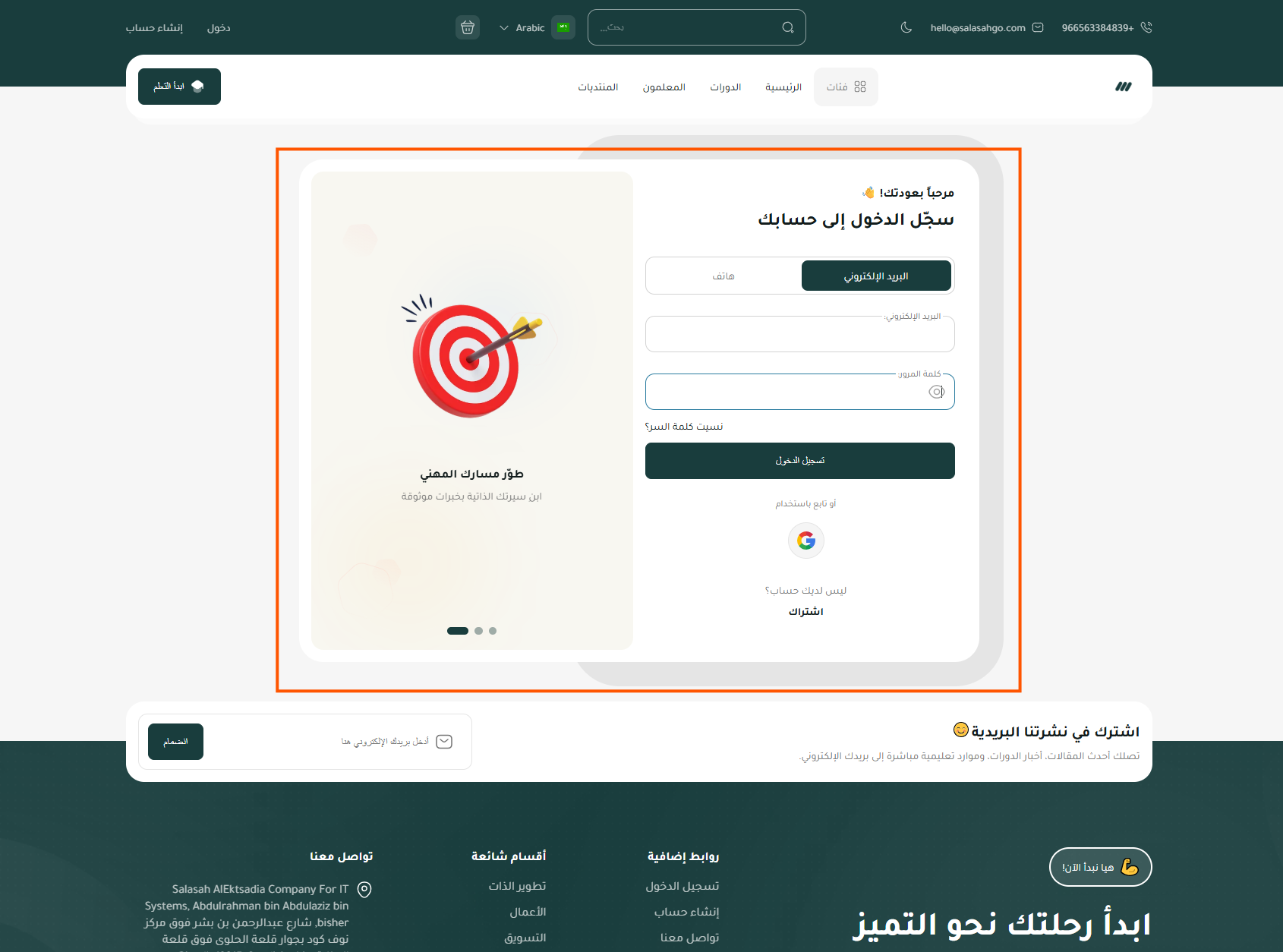
Step 2 Enter your credentials
Enter your registered email address in the first field, then enter your password in the second field. Make sure to verify your information before proceeding.
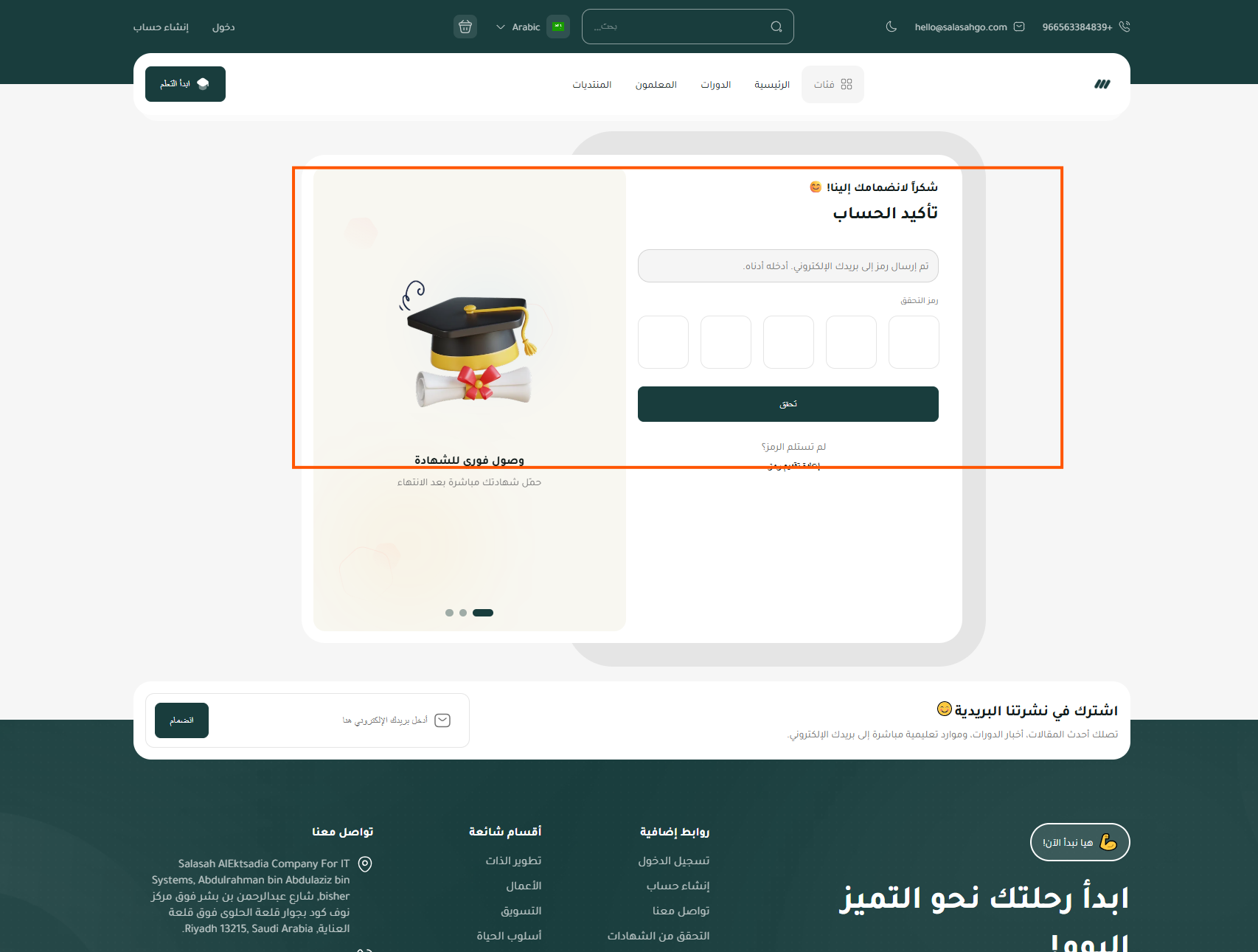
Step 3 Verify your account
Enter the verification code shown on the confirmation screen, then click Verify to continue.
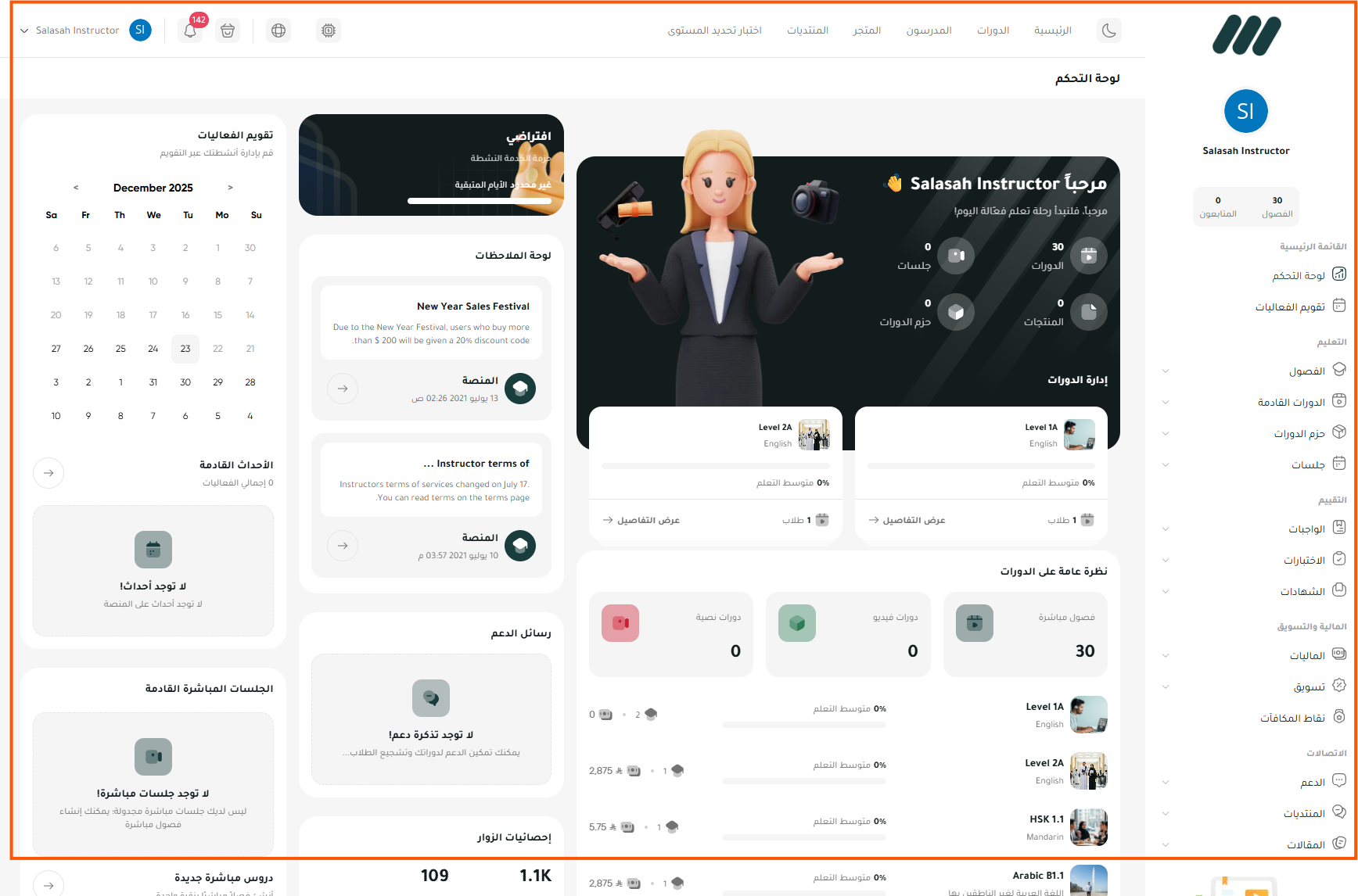
Step 4 Access the dashboard
After successfully logging in, you'll be automatically redirected to the teacher dashboard. Here you can see an overview of your courses, new notifications, and recent activities.
Step 5 Navigate the main menu
Explore the sidebar menu to access all sections: Courses, Virtual Classrooms, Students, Reports, and Settings. Each section contains specialized tools for managing your training work.
Creating Training Courses
Comprehensive interactive guide for creating and setting up new training courses and organizing educational content.
Duration: 10 min
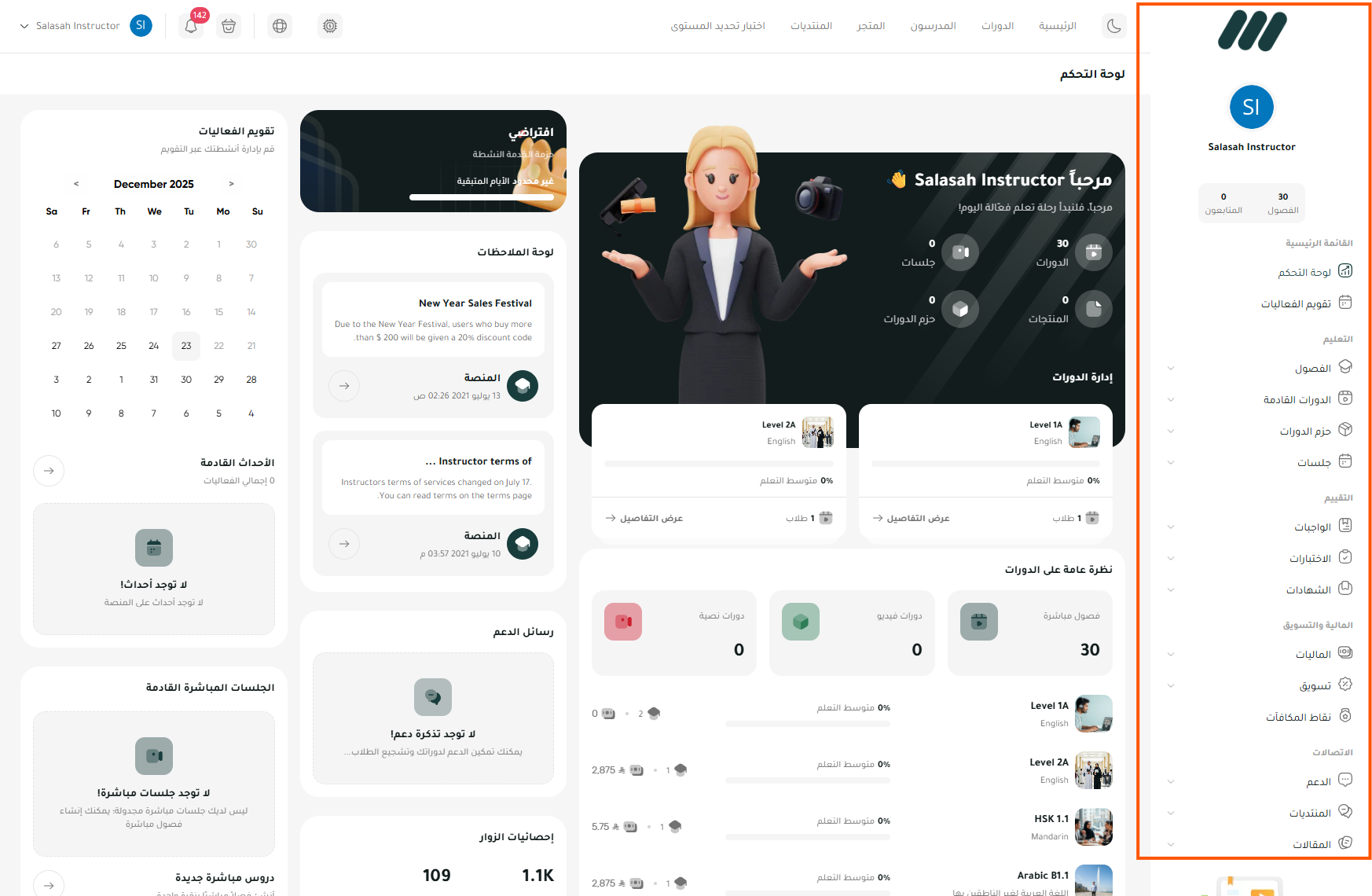
Step 1 Open the courses/classes section
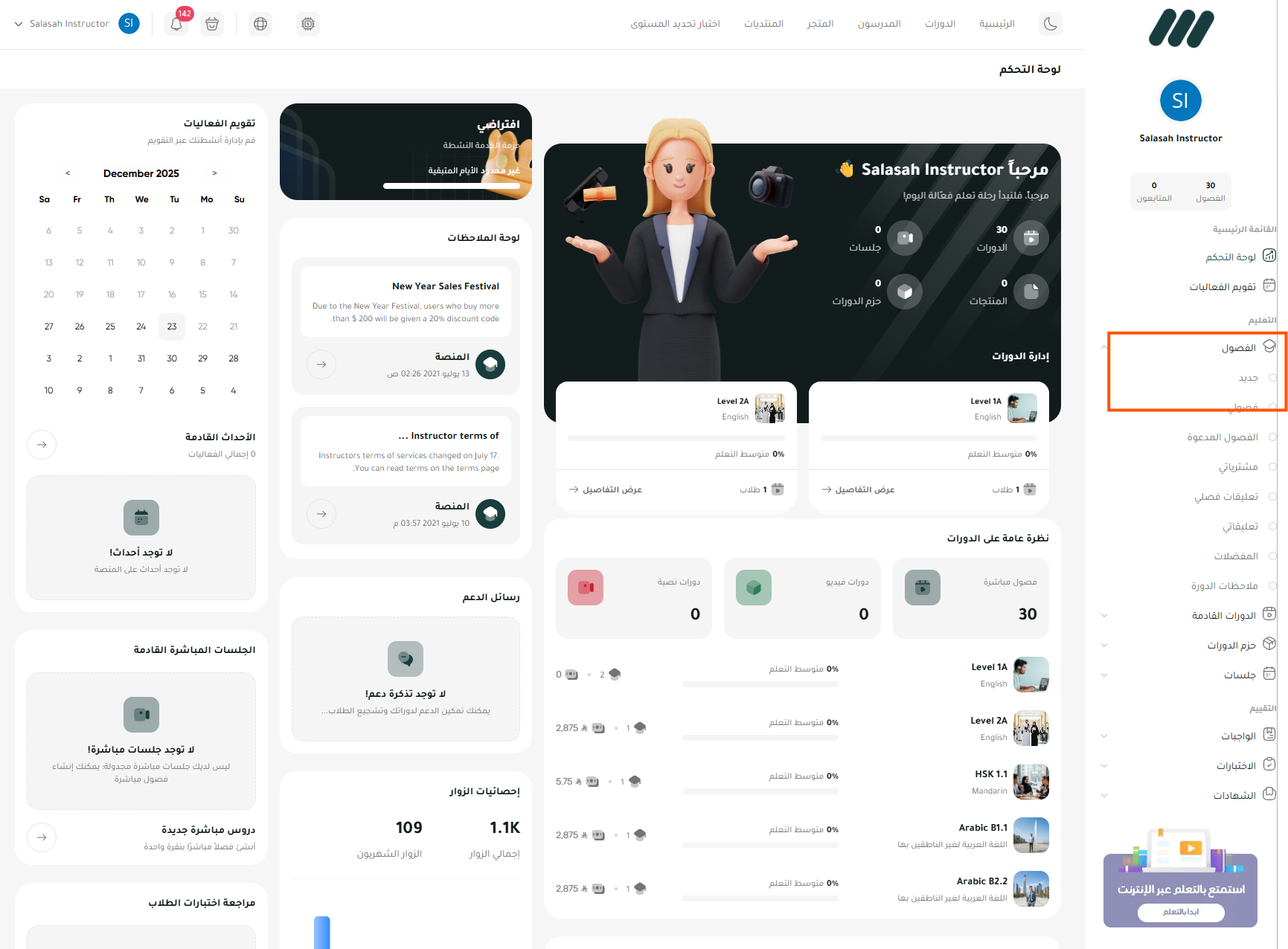
From the dashboard, use the right sidebar and open the Courses/Classes section to start creating a new course.
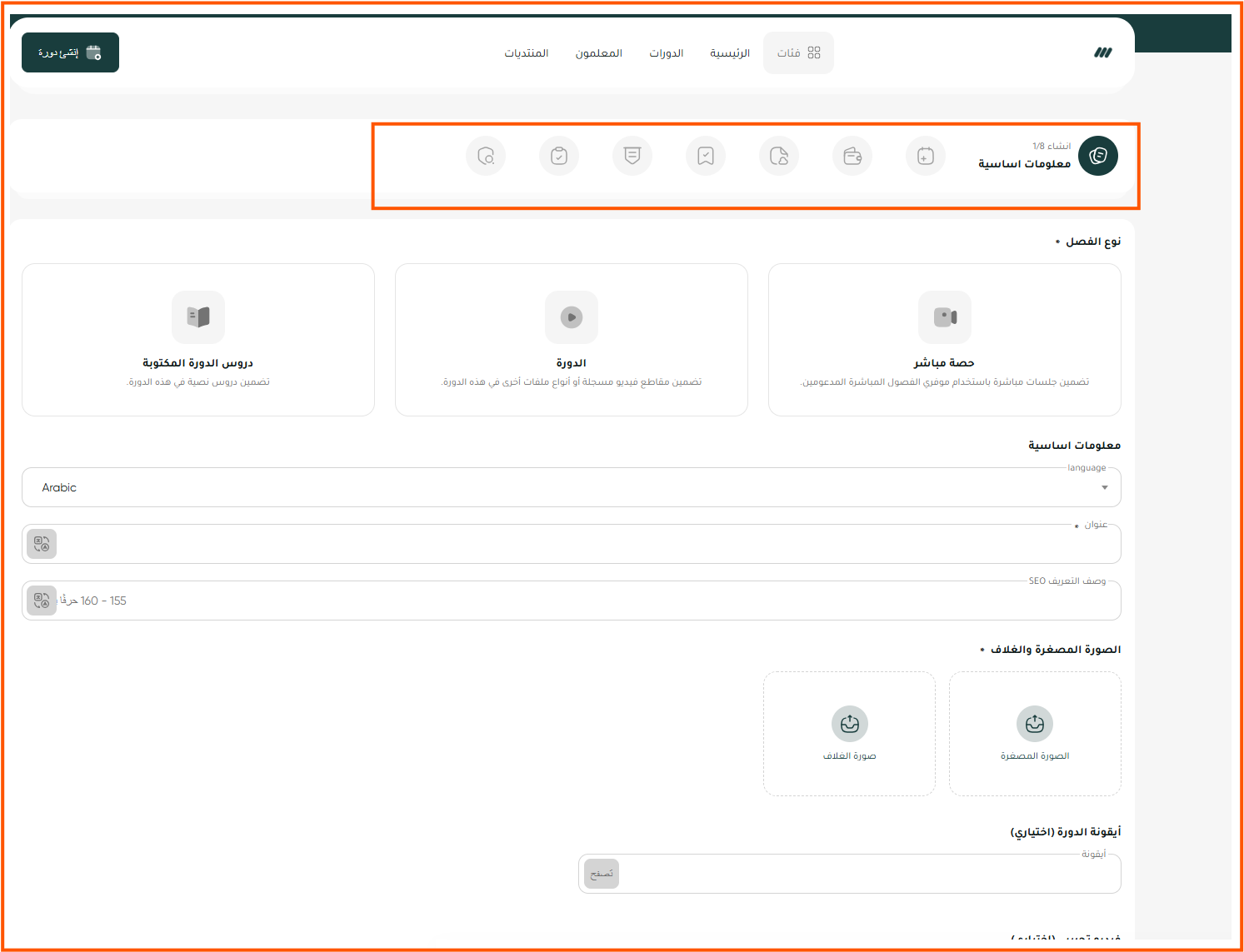
Step 2 Fill in basic course information
On the Basic Information step, choose the course type, set the language, enter the title and SEO description, and upload the cover and thumbnail.
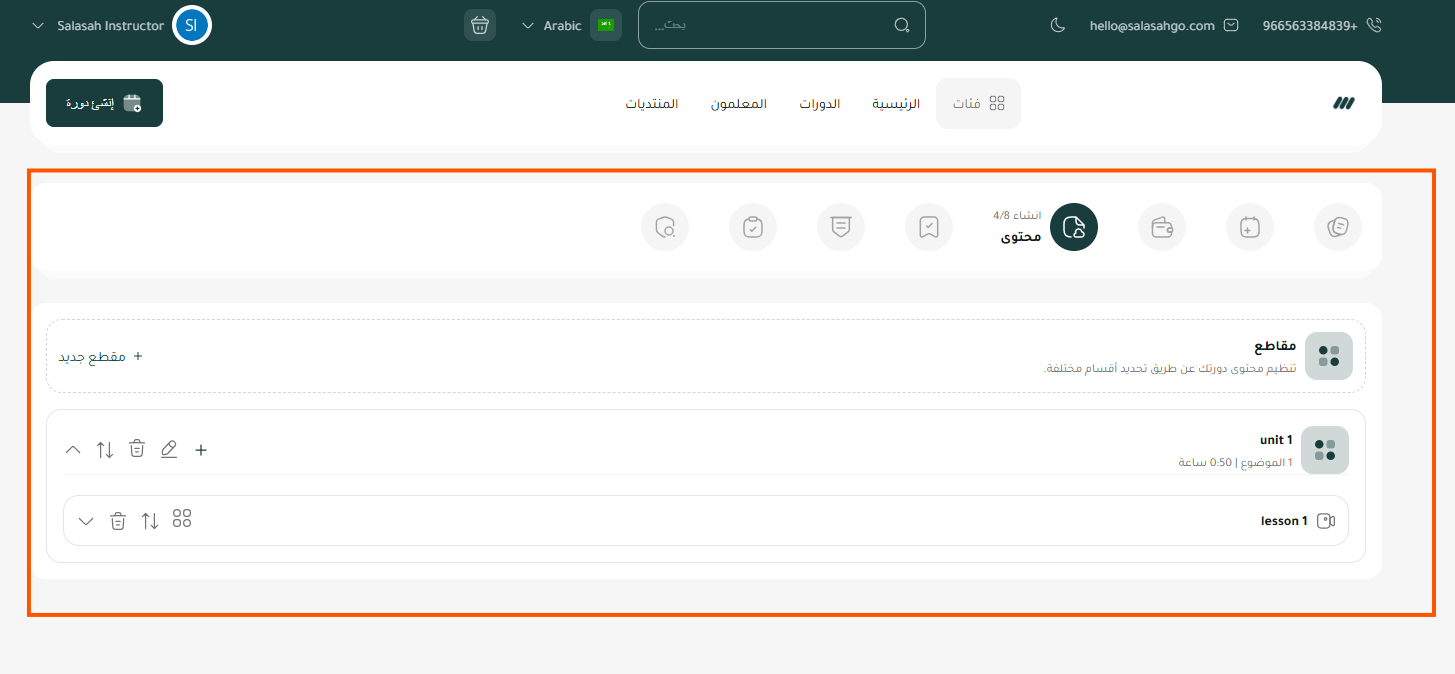
Step 3 Organize sections, units, and lessons
In the Content step, add sections and units, create lessons, and reorder items to match your curriculum.
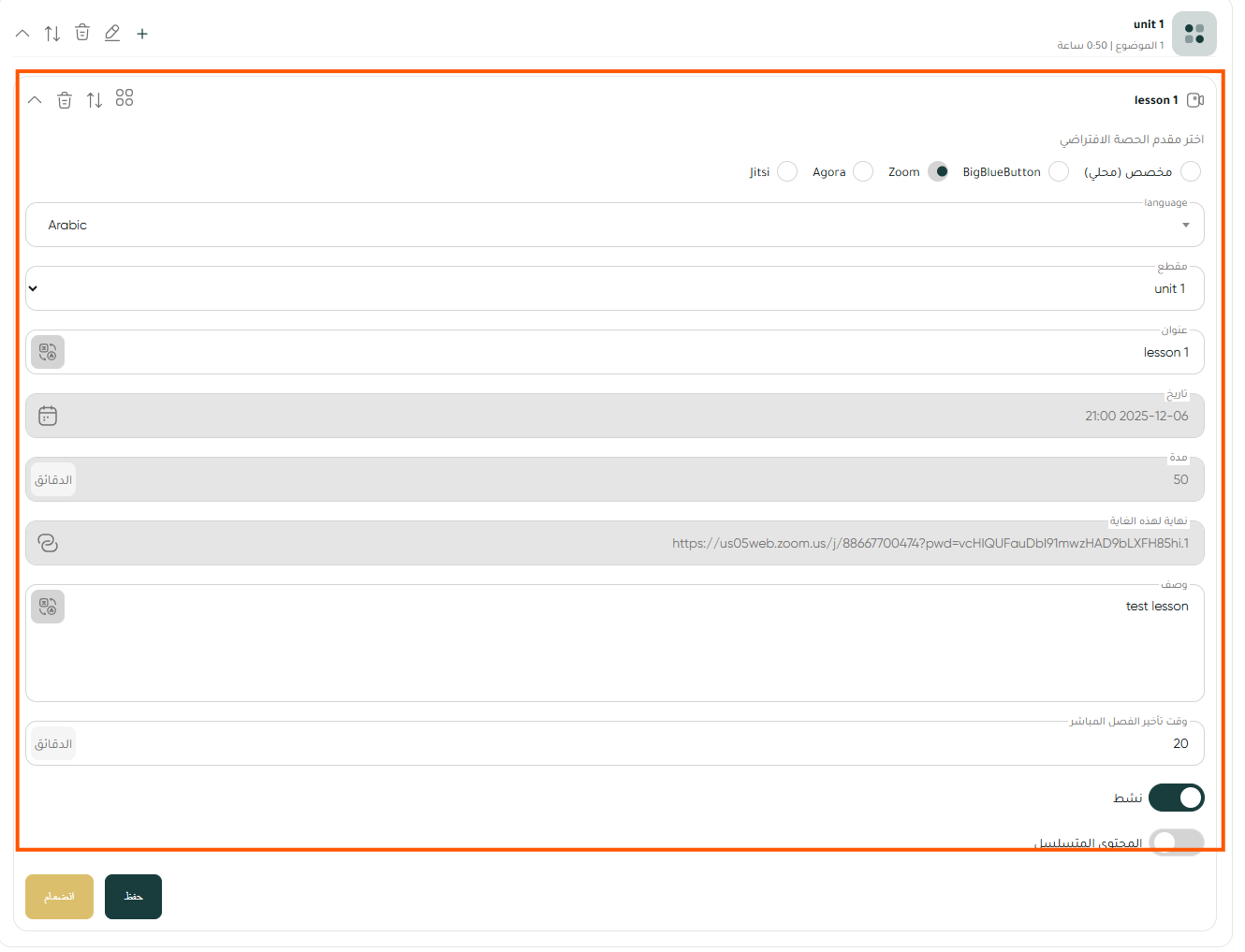
Step 4 Set lesson details and meeting link
For a live lesson, choose the provider (Zoom, BigBlueButton, etc.), set the date and duration, add the meeting link, and write the lesson description.
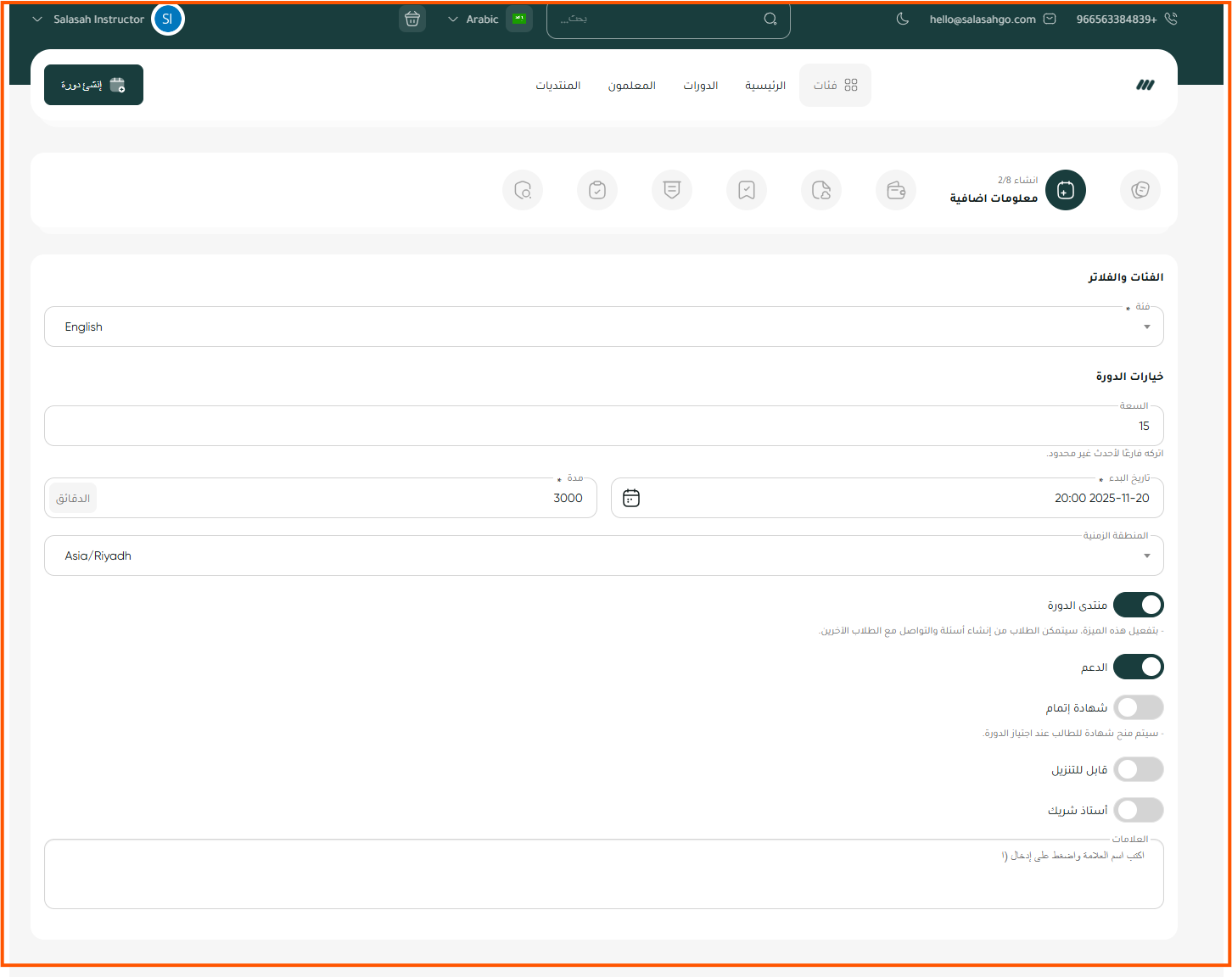
Step 5 Configure additional settings
Set category, price, start date/time, time zone, and toggle options like forum, support, or certificate.
Managing Virtual Classrooms
Video tutorials explaining how to create and manage virtual classrooms and live sessions with trainees.
Duration: 8 min
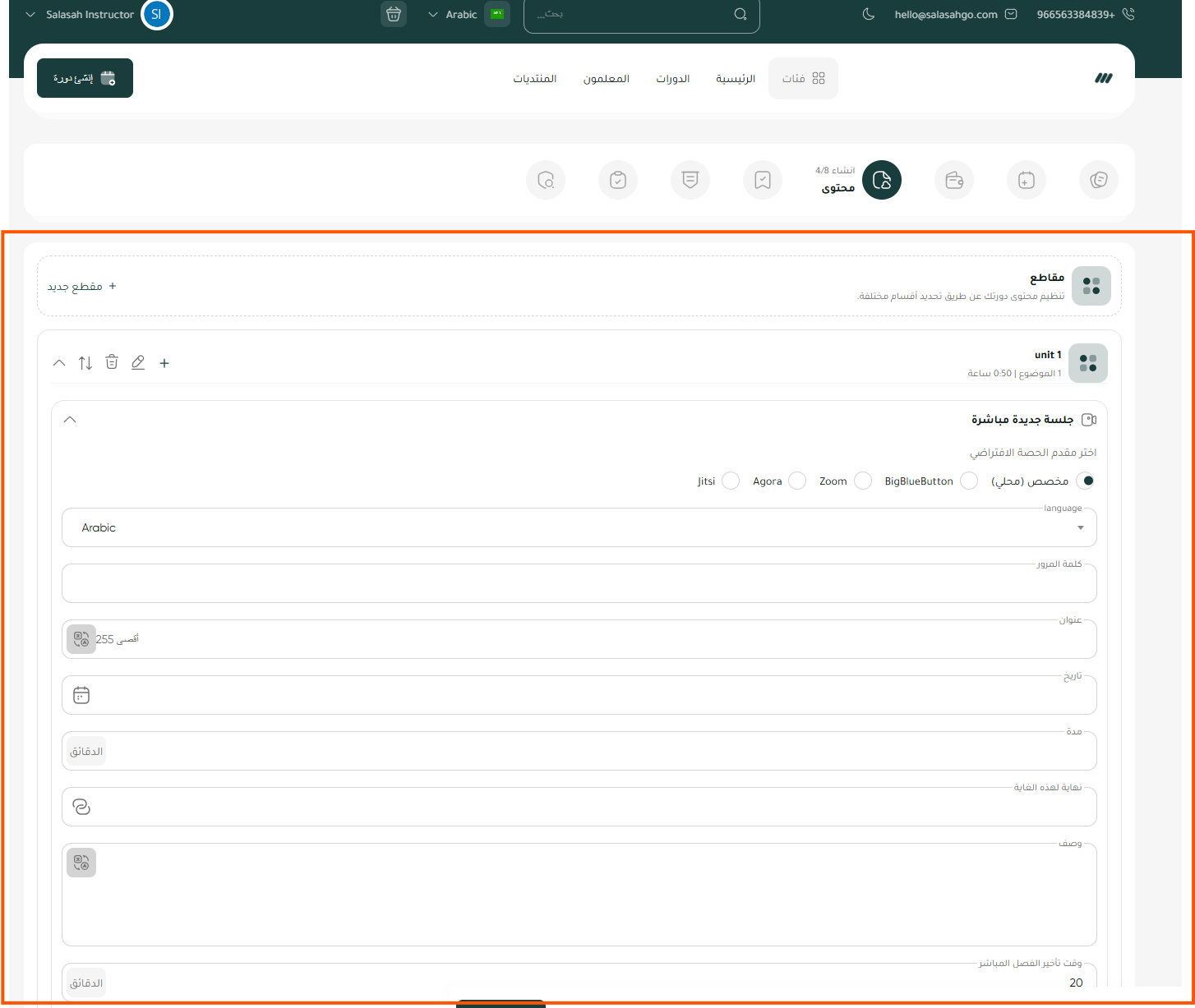
Step 1 Create a new live session
From the Virtual Classrooms section, click New Live Session, choose the provider, then set the language, date, and duration.
Step 2 Set up the meeting room
Before starting the session, make sure to set up the room: choose the display layout, enable or disable cameras and microphones for participants, and set sharing permissions.
Step 3 Invite participants
Send invitations to trainees via email or copy the session link and distribute it. You can also add the session to the course calendar for automatic notifications to registered users.
Step 4 Manage the live session
During the session, control participants: mute audio, grant speaking permissions, manage raised hands for questions. Use chat for simultaneous written communication.
Step 5 Share screen and presentations
Share your screen to display educational content, or use the interactive whiteboard for explanations. You can also upload presentations directly within the session.
Starting the Training Process
Step-by-step guide to starting the training process and delivering educational content effectively to trainees.
Duration: 7 min
Step 1 Open the training course
From the dashboard, select the course you want to teach and enter it. You'll see an overview of the content, registered trainees, and overall progress.
Step 2 Present educational content
Navigate to the lesson you want to present and review the available content. Ensure all resources are ready: videos, files, and links before starting the session.
Step 3 Interact with trainees
Use available interaction tools: discussion forums, live chat, and comments on content. Encourage trainees to participate and ask questions.
Step 4 Monitor trainee progress
Track each trainee's progress through the reports dashboard. View content completion percentage, grades, and engagement level for each individual.
Step 5 Provide support and guidance
Provide individual feedback to trainees, answer their inquiries, and offer additional resources for those who need extra support to achieve learning objectives.
Creating Tests and Assessments
Detailed guide for creating electronic tests of various types and setting assessment criteria.
Duration: 12 min
Step 1 Create a new test
From the assessments section, choose 'Create New Test'. Select the test type (self-assessment, timed test, or final exam) and the associated course.
Step 2 Add various question types
Add questions of different types: multiple choice, true/false, essay questions, matching, or ordering. Each type has its own settings for answers and grades.
Step 3 Set grades and time limits
Determine the grade for each question and the overall passing grade. If the test is timed, set the allowed duration to complete the test.
Step 4 Configure test settings
Choose test settings: allow multiple attempts, show results immediately or later, randomize questions, and prevent cheating with browser lock.
Step 5 Review and publish the test
Review all questions and settings before publishing. You can preview the test as it will appear to trainees. Once satisfied, publish the test to make it available.
Creating Assignments and Tasks
Interactive guide for creating assignments and tasks required from trainees with submission deadlines.
Duration: 6 min
Step 1 Create a new assignment
Navigate to the relevant course and choose 'Add New Assignment'. Enter the assignment title and link it to the appropriate unit or lesson in the course structure.
Step 2 Write assignment instructions
Write clear and detailed instructions for the assignment. Specify requirements precisely, assessment criteria, and any resources to reference. You can use rich text formatting.
Step 3 Set submission deadline
Choose the final submission date and time. You can set a late submission period with grade deduction, or reject submissions after the deadline entirely.
Step 4 Add attached files
Attach any necessary files for the assignment: templates, forms, reference resources, or illustrative examples. These files will be available for trainees to download.
Step 5 Publish to trainees
After review, publish the assignment for trainees to see. They will receive a notification about the new assignment. You can monitor submissions and evaluate them from the tracking dashboard.
Responding to Trainee Inquiries
Video tutorials explaining how to manage communication and respond to learner questions and inquiries.
Duration: 5 min
Step 1 Access the message inbox
From the main menu, go to the 'Messages' or 'Communication' section. You'll find the inbox containing all messages and inquiries from trainees sorted by date.
Step 2 View new inquiries
Unread messages will appear highlighted. Click on any message to view its full details. You can categorize messages by priority or topic for easier management.
Step 3 Reply to questions
Write your reply in the response field below the message. You can attach files or useful links. The reply will reach the trainee via platform notification and their email.
Step 4 Create announcements
To send a message to all trainees in a specific course, use the 'Announcements' feature. Write the announcement and it will reach all registered users immediately.
Step 5 Manage discussion forums
Monitor discussion forums for your courses. Engage with posts, answer general questions, and encourage constructive discussion among trainees.
Tracking Progress and Reports
Comprehensive guide for monitoring trainee performance, creating reports, and analyzing learning outcomes.
Duration: 8 min
Step 1 Access the reports dashboard
From the dashboard, go to the 'Reports' section. You'll find an overview of all your courses' performance with illustrative charts for key statistics.
Step 2 View progress statistics
Select a specific course to view detailed statistics: number of active trainees, content completion rate, average time spent, and overall engagement level.
Step 3 Analyze test results
Review test results individually and collectively. Analyze the most difficult questions, success rates, and averages to improve educational content.
Step 4 Export reports
Export reports in multiple formats: PDF for sharing, Excel for advanced analysis, or CSV for import into other systems. Specify the time period and required data.
Step 5 Evaluate overall performance
Use key performance indicators to evaluate training effectiveness: completion rate, trainee satisfaction, and achievement of learning objectives. Plan improvements based on data.
For Learners / Trainees
How to Log In
Visual guide explaining the steps to log into the training platform and access your personal account.
Duration: 3 min
Step 1 Open the login page
Open your web browser and navigate to the Salasah Go! website. Click the 'Login' button visible at the top of the homepage.
Step 2 Enter your email
In the first field, enter the email address you registered with on the platform. Make sure to type it correctly without spelling errors.
Step 3 Enter your password
In the second field, enter your password. If you forgot your password, click the 'Forgot Password' link to recover it.
Step 4 Verify your account
Enter the verification code shown on the confirmation screen, then click Verify to continue.
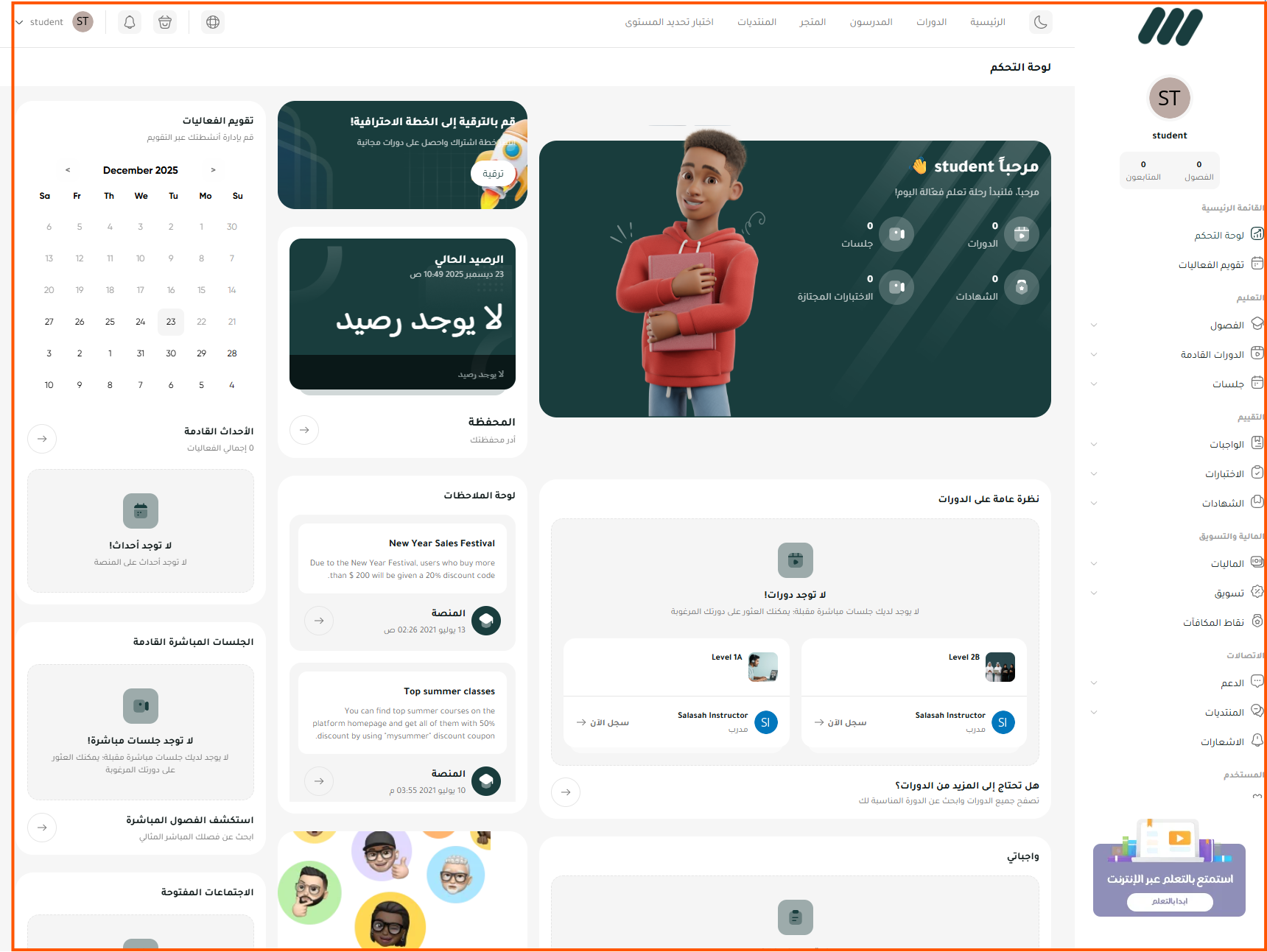
Step 5 Access the homepage
After successfully logging in, you'll be taken to your homepage where you'll find your enrolled courses, notifications, and upcoming activities.
Selecting Training Courses
Interactive guide for browsing available courses and enrolling in suitable training programs.
Duration: 5 min
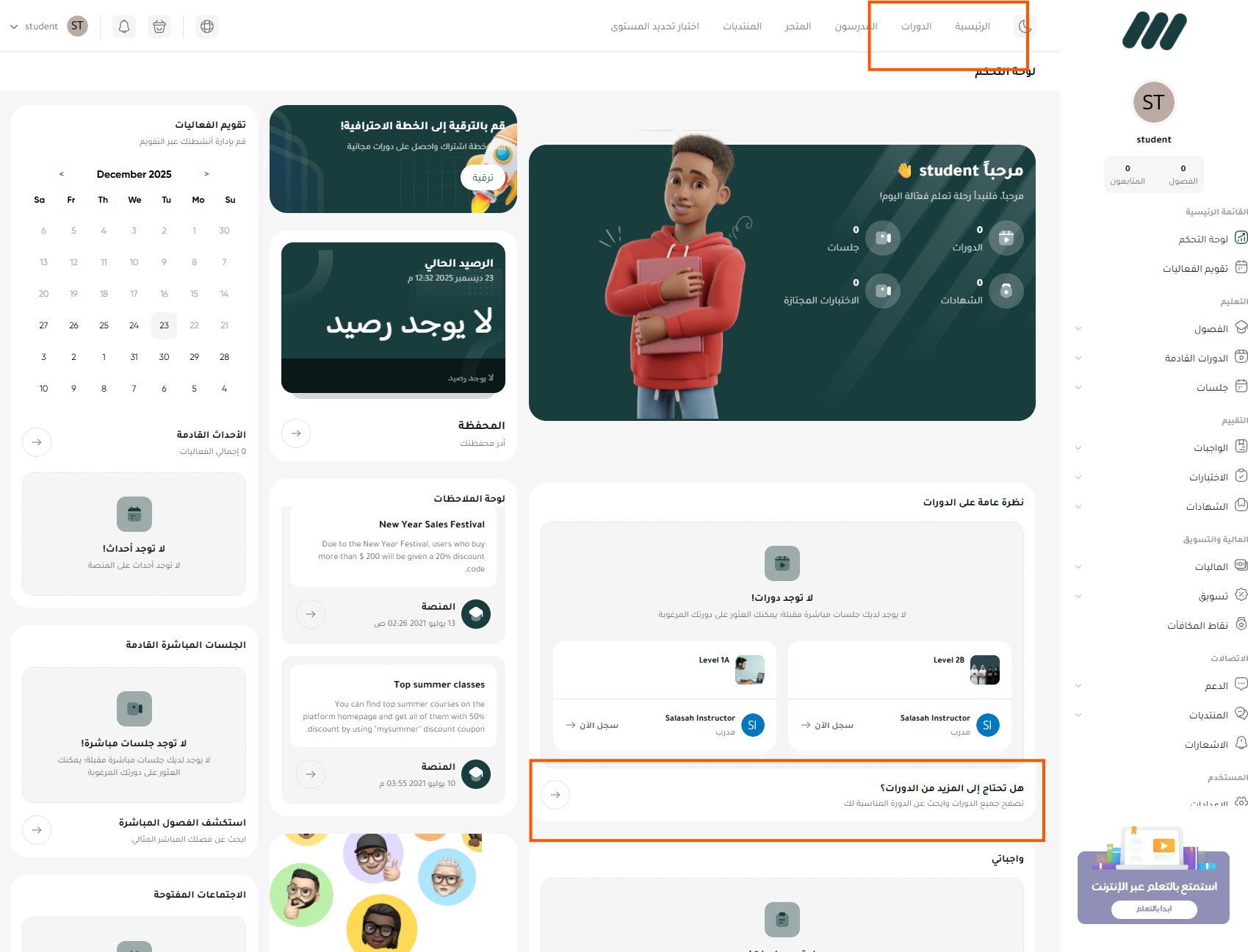
Step 1 Open the courses catalog
From the top navigation, click Courses to open the catalog of available programs.
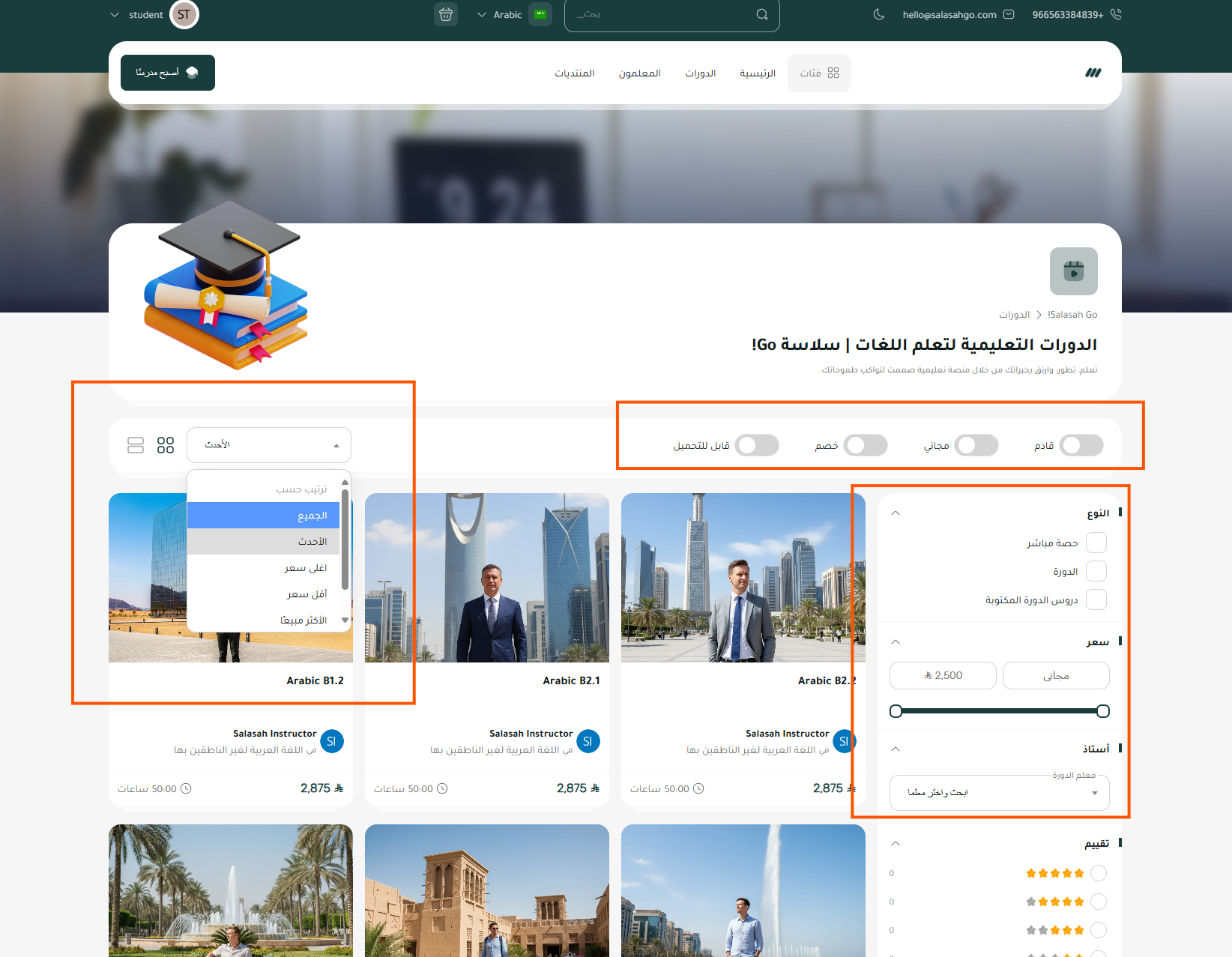
Step 2 Use search and filters
Use the search box, sorting menu, and filters (type, price, instructor) to narrow the results.
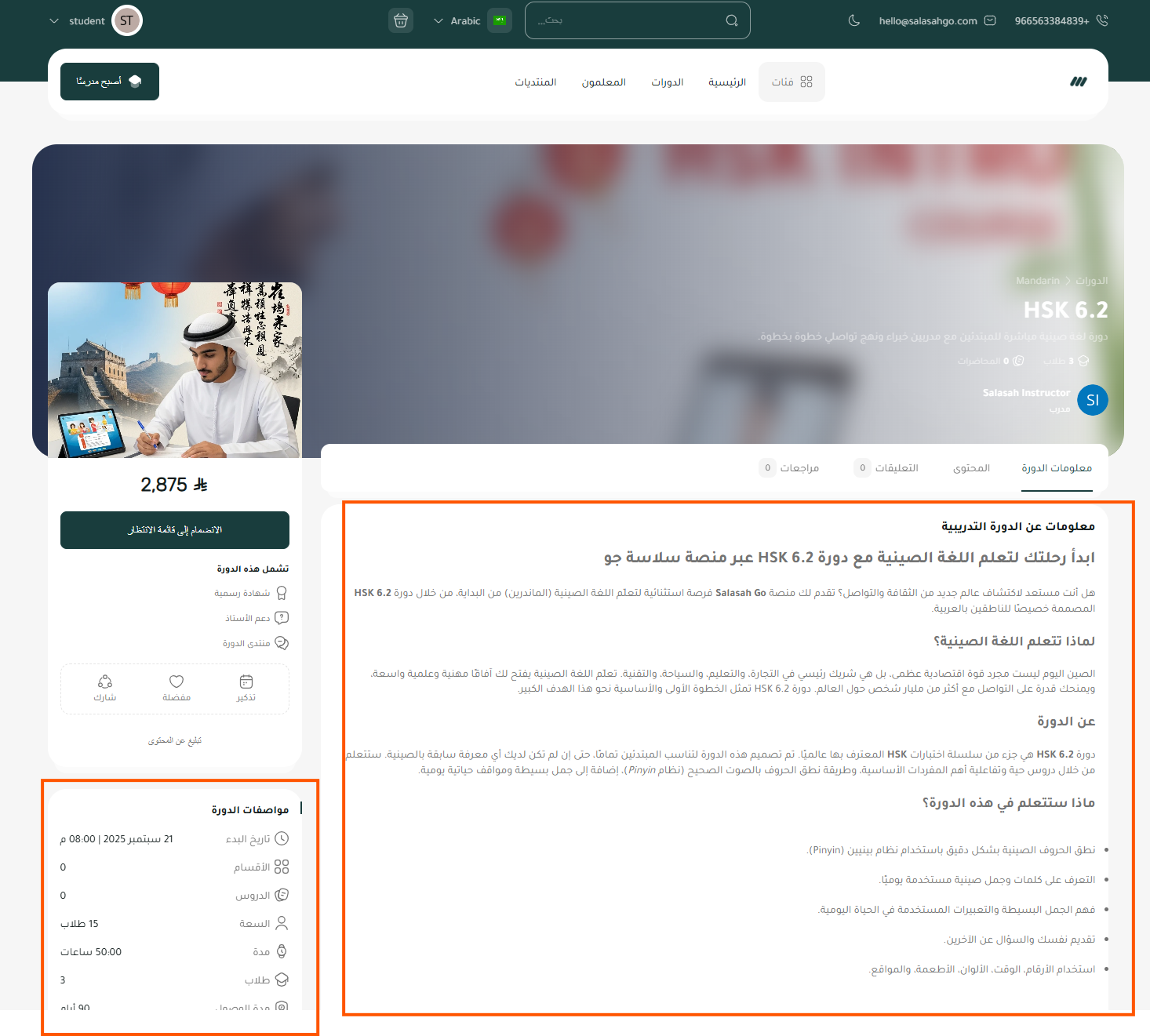
Step 3 Review course details
Open a course page to read the description, objectives, and requirements, and check the enrollment button in the sidebar.
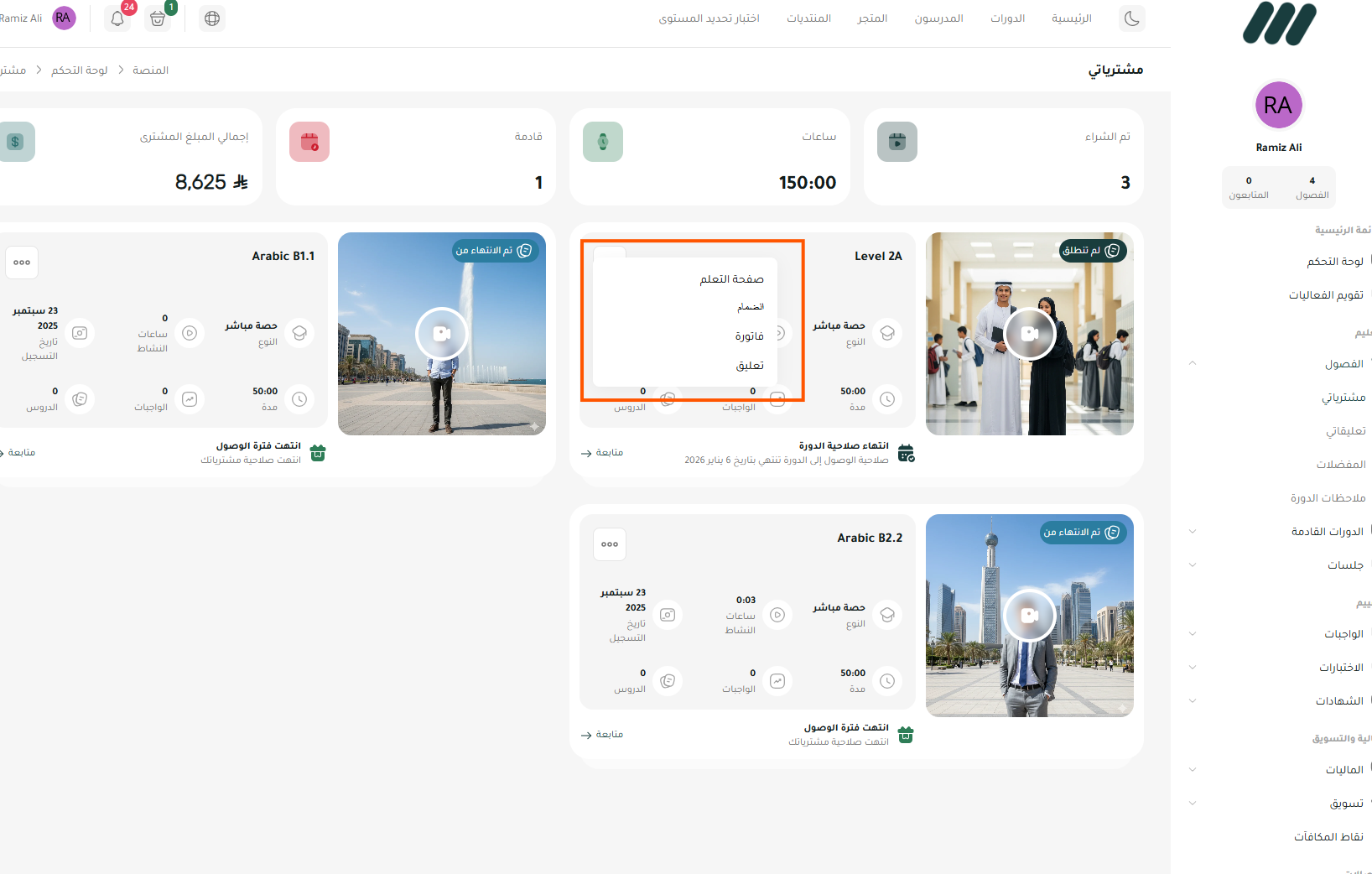
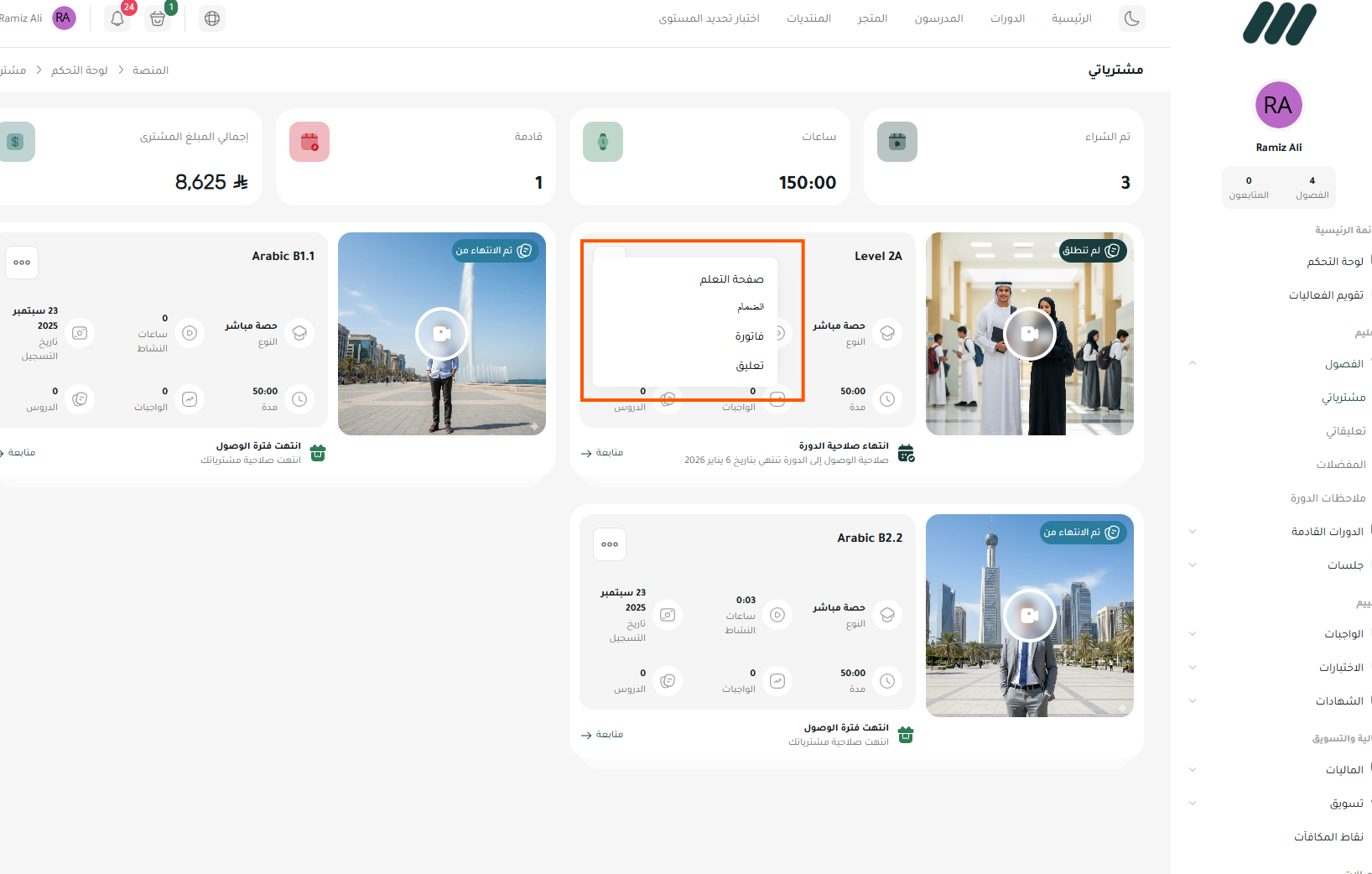
Step 4 Open the course actions menu
From your courses list, open the card menu and choose the Learning Page option to enter the course.
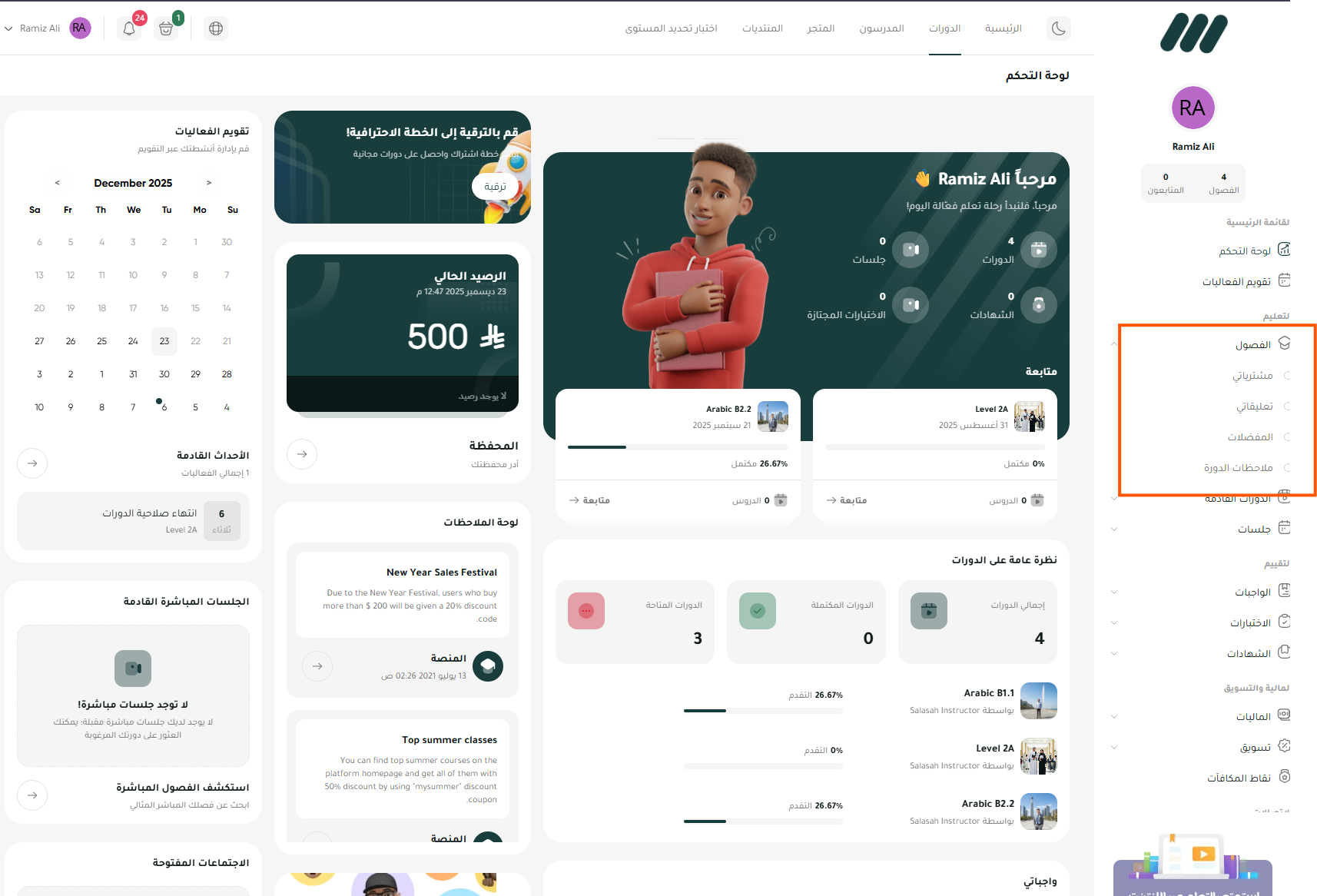
Step 5 Find enrolled courses in the sidebar
Use the right sidebar and open the Classes/Enrolled section to view all your registered courses.
Starting the Training Process
Video tutorials explaining how to begin your learning journey and navigate through course content.
Duration: 4 min
Step 1 Open your enrolled course
From your homepage or 'My Courses' section, click on the course you want to continue. The course's main page will open.
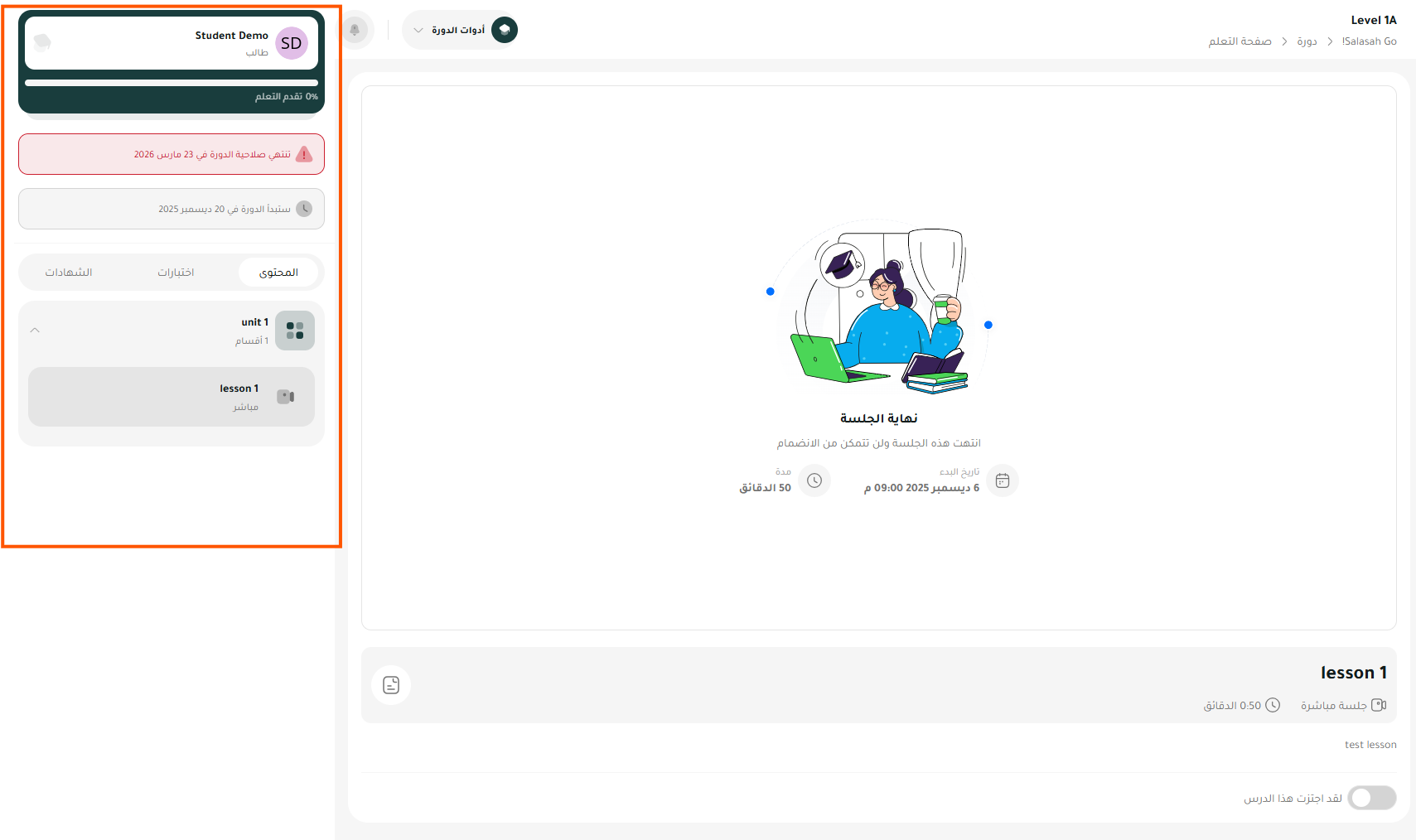
Step 2 Review the course plan
Before starting, review the course plan to understand its structure. You'll find a list of all units and lessons with estimated time for each part.
Step 3 Start the first lesson
Click on the first lesson to start your learning journey. Watch videos, read materials, and interact with available interactive content.
Step 4 Navigate between units
After completing each lesson, you'll see options to move to the next lesson or return to the main list. You can freely navigate between open units.
Step 5 Save your progress
Your progress is automatically saved while learning. You can pause the video and return later from the same point. The progress bar shows your course completion percentage.
Managing Virtual Classrooms
Step-by-step guide for joining and participating in virtual classrooms and live sessions.
Duration: 6 min
Step 1 Check the schedule
Check the live session schedule in the 'Virtual Classrooms' section or in the course calendar. You'll find the times of all upcoming sessions with their details.
Step 2 Join the virtual classroom
A few minutes before the session, you'll see a 'Join' option. Click on it and wait for the meeting room to load. Ensure you have a stable internet connection.
Step 3 Set up audio and camera
Upon entering, you'll be asked about audio and camera settings. Choose the appropriate microphone and speakers. You can enable or disable the camera as you wish.
Step 4 Participate in discussions
To speak, use the raise hand button and wait for the trainer's permission. Use chat to ask written questions without interrupting the explanation.
Step 5 Use interaction tools
Take advantage of available interaction tools: polling, quick reactions, and the collaborative whiteboard if enabled by the trainer. These tools make the session more interactive.
Interacting with Content & Communication
Interactive guide for engaging with educational content and communicating with trainers and fellow trainees.
Duration: 5 min
Step 1 Watch videos
Click on any video to play it. You can control the speed, enable subtitles if available, and fast forward or rewind. Watch the video attentively and take important notes.
Step 2 Read learning materials
Read the text materials and presentations available. You can download them for offline viewing later. Use highlighting tools if available.
Step 3 Ask questions
If you encounter difficulty, use the questions section to ask your inquiry. The trainer or your peers will respond. Be clear and specific in your question.
Step 4 Participate in forums
Join the course discussion forums. Share your ideas, answer your peers' questions, and learn from others' experiences. Interaction enhances learning.
Step 5 Connect with peers
Connect with your course peers through private messages or study groups. Exchange resources and notes to enrich the collective learning experience.
Completing Tasks and Assignments
Video tutorials explaining how to complete required tasks and submit assignments on time.
Duration: 5 min
Step 1 View required assignments
Go to the 'Assignments' section in the course or from the homepage. You'll find a list of all assignments with their status (new, in progress, completed) and deadlines.
Step 2 Read assignment instructions
Click on the assignment to view its full details. Read the instructions carefully, review assessment criteria, and download any attached files you may need.
Step 3 Prepare the assignment
Complete the assignment according to instructions. Use appropriate software to prepare your file (Word, PDF, etc.). Make sure to meet all requirements before submission.
Step 4 Upload assignment file
Click the 'Upload Assignment' button and select the file from your device. Verify the required format and file size. Wait for the upload to complete before proceeding.
Step 5 Confirm submission
After uploading, click 'Confirm Submission'. You'll receive a confirmation message. You can replace the file before the deadline if you need to make changes.
Completing Tests
Detailed guide for understanding how to access tests, answer them, and submit correctly.
Duration: 4 min
Step 1 Access the tests section
From the course page, go to the 'Tests' or 'Assessments' section. You'll find a list of available tests with their status and dates.
Step 2 Start the test
Click on the required test then 'Start Test'. Read the instructions carefully before starting. If the test is timed, the countdown will begin immediately.
Step 3 Answer questions
Answer each question with focus. Navigate between questions using navigation buttons. You can mark questions for later review if you're unsure.
Step 4 Review answers
Before submitting, review all your answers. You'll see a list of questions you answered, those you left blank, or marked for review.
Step 5 Submit the test
After confirming your answers, click 'Submit Test'. Your result will appear immediately if the test is set for that, or you'll be notified when results are released.
Tracking Program Progress
Step-by-step guide for monitoring your course progress and viewing your results and achievements.
Duration: 4 min
Step 1 Open progress dashboard
From your homepage or within the course, go to 'My Progress' or 'Tracking Dashboard'. You'll find an overview of all your activities and achievements.
Step 2 View completion percentage
See your completion percentage for each course through the progress bar. It shows how many lessons you've completed and how many remain, with an estimate of time needed to finish.
Step 3 Review grades
View your grades in tests and assignments. You'll find details for each assessment with feedback if available. Track your overall grade average.
Step 4 View certificates
After completing the course and passing its requirements, you'll receive a completion certificate. You can download it and share it on your professional networks.
Step 5 Download reports
You can download a detailed progress report in PDF format. This report summarizes all your achievements and can be used for professional purposes.
Booking a Placement Test
Step-by-step guide for browsing and booking a placement test.
Duration: 4 min
Step 1 Open the placement test booking tab
From your profile appointments page, open the placement test booking area to view the calendar.
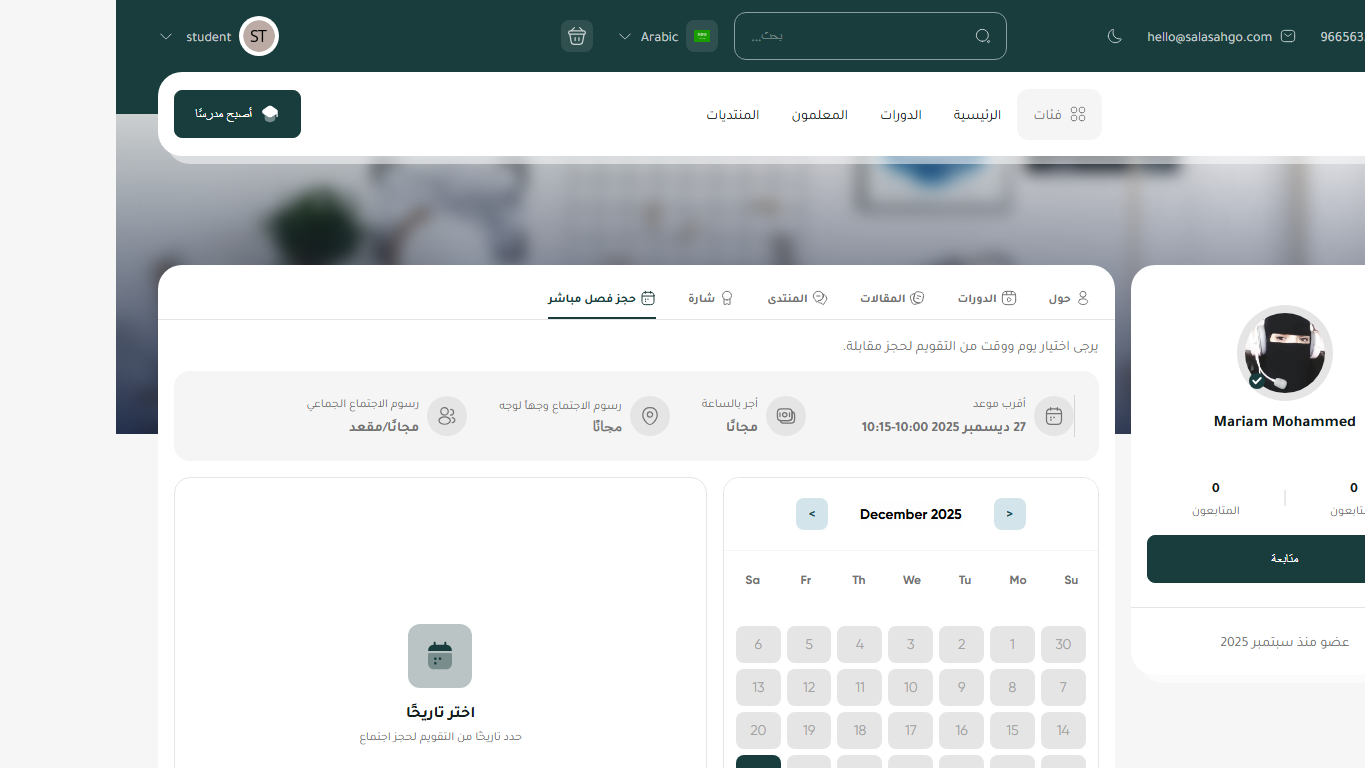
Step 2 Select a date from the calendar
Pick a day to load the available time slots for that date.
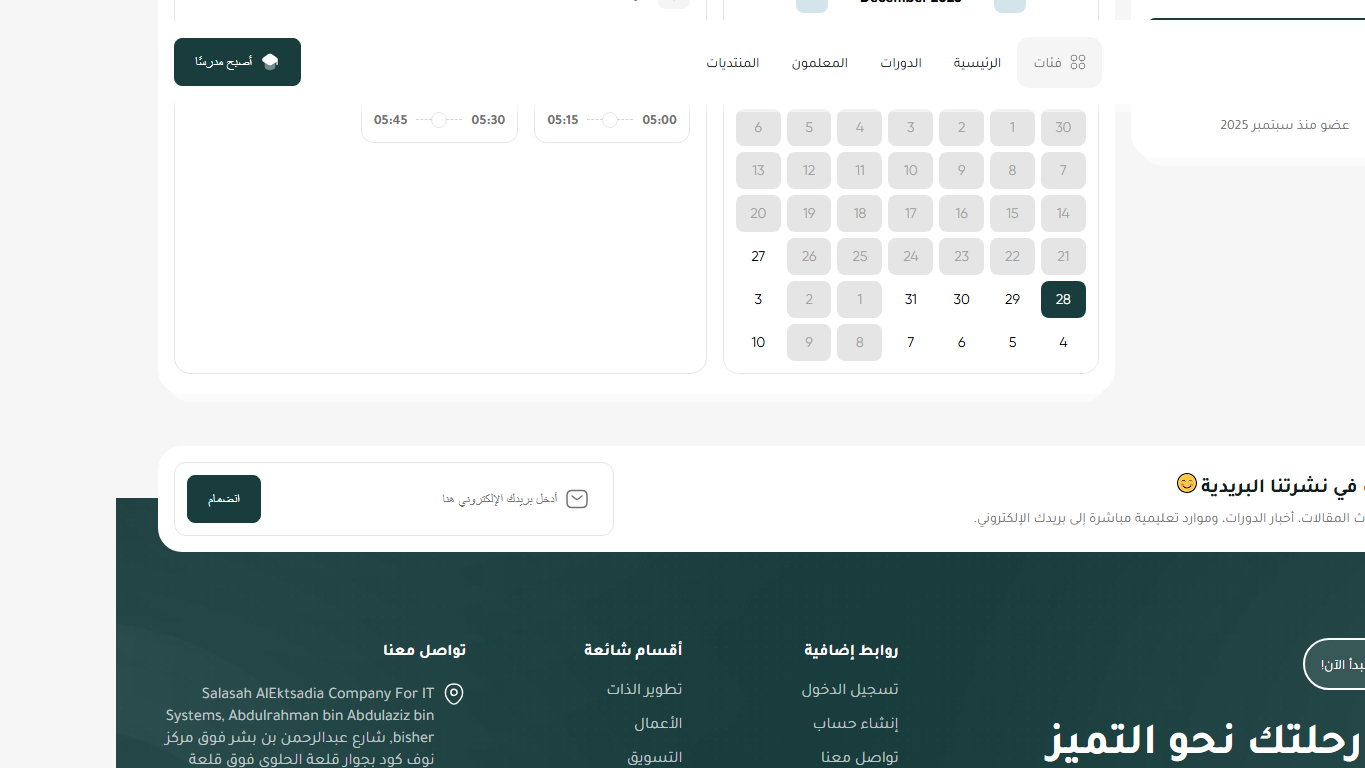
Step 3 Choose an available time slot
Select a time range from the available list so the continue button appears.
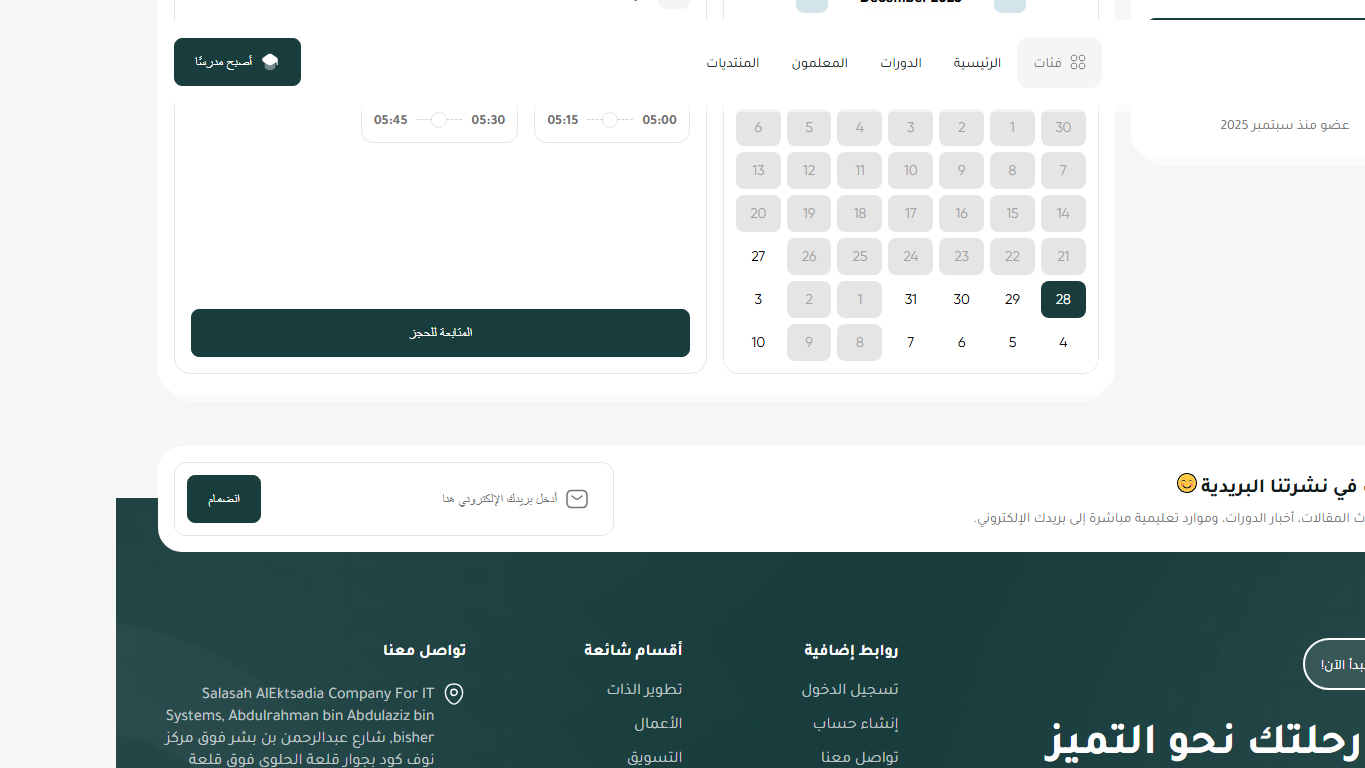
Step 4 Continue to booking
Click the Continue to booking button to proceed to the meeting details.
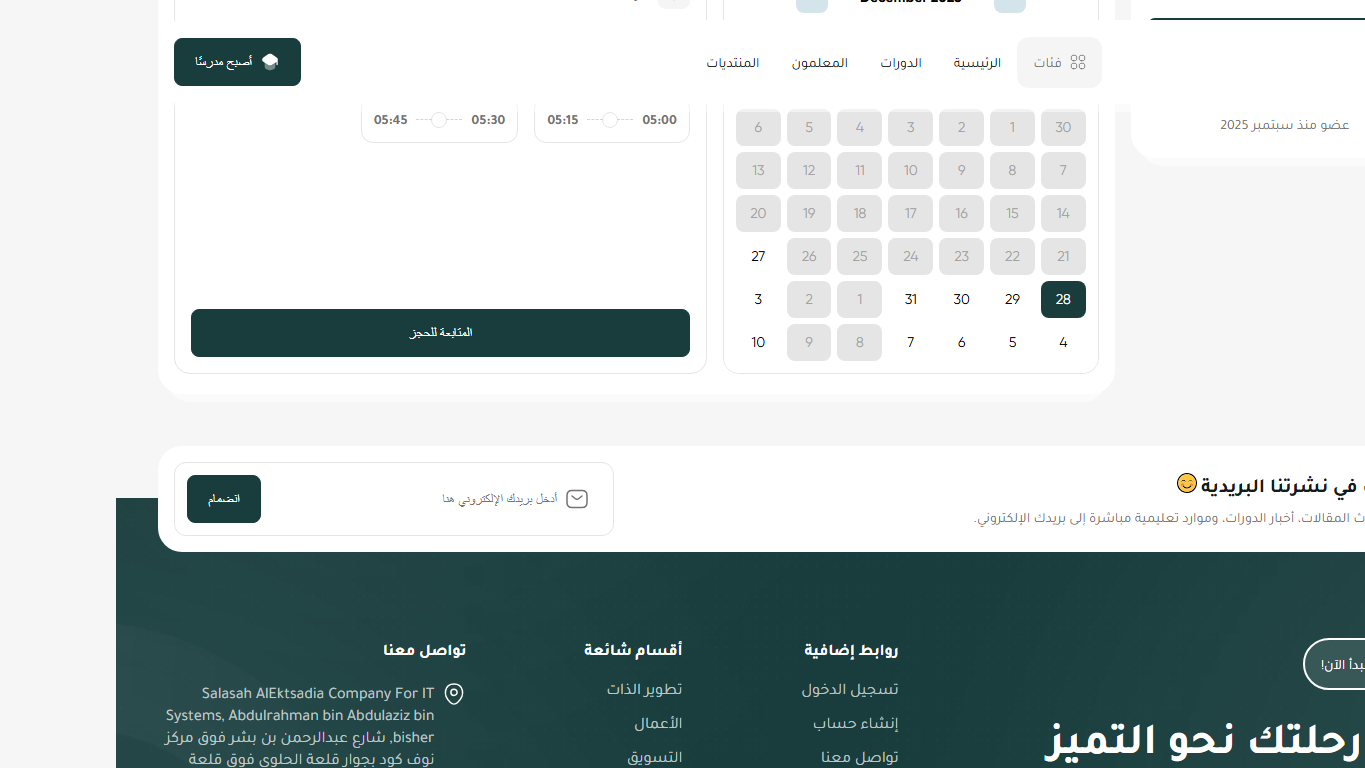
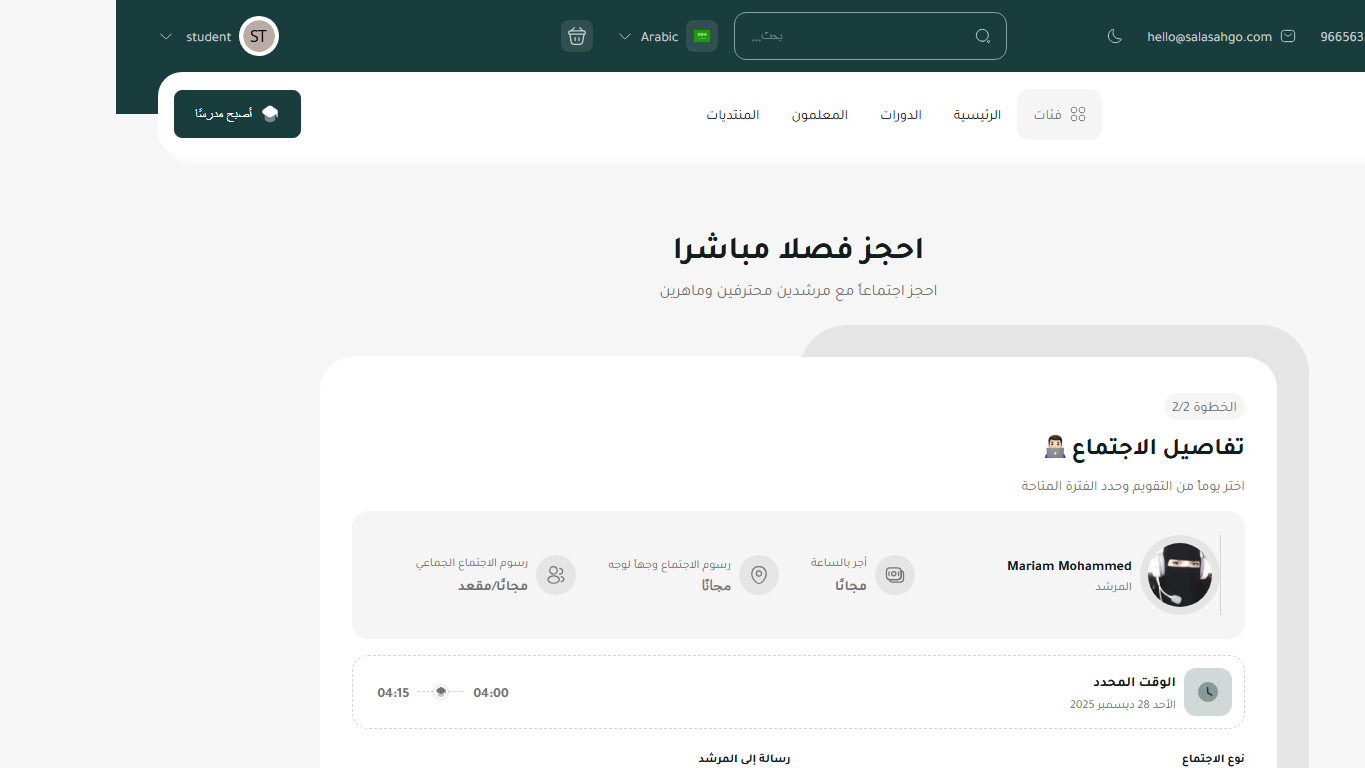
Step 5 Review meeting details and confirm
Verify the selected date/time and mentor details, then confirm your booking.
Frequently Asked Questions
Can I access the guides without logging in?
Yes, all instructional guides and video tutorials are available for viewing without the need to log in. You can access them at any time.
How do I recover my password?
Click 'Forgot Password' on the login page. You will receive an email with a link to reset your password.
What file formats are supported for uploading assignments?
We support PDF, Word, Excel, PowerPoint for documents. For videos, we accept MP4 and MOV. For images, we accept JPG, PNG, and GIF. Maximum file size is 100MB.
Are virtual classes recorded automatically?
Yes, all virtual classes are automatically recorded and made available in the resources section. You can watch them at any time.
How do I contact technical support?
You can reach us via live chat or by sending an email to our technical support team.
Contact our support team on WhatsApp: +966 56 338 4839


